AI videos with SVG: keep the artwork, edit the motion
Make AI videos with editable SVG, one generated background and code-controlled motion. Run Video Director, change a label and timing, then export an MP4.
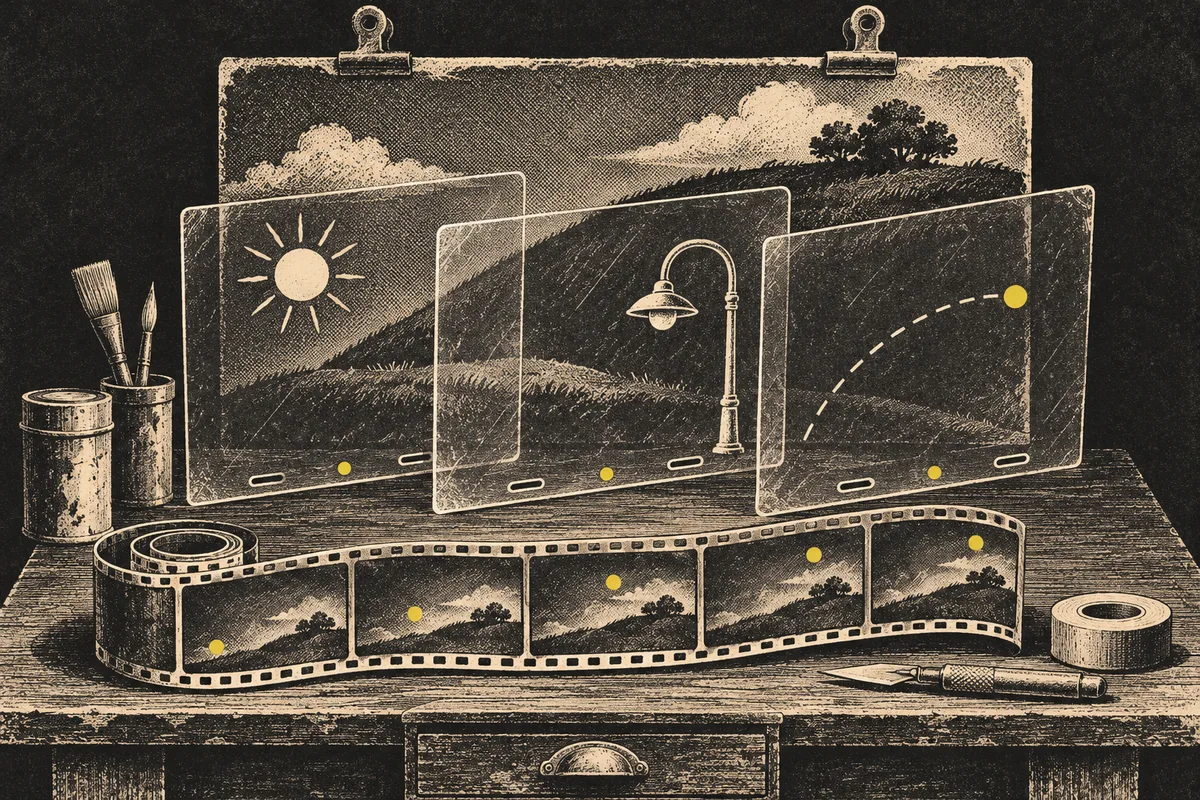
A while back, I wrote about making AI images with a generated background and an editable SVG foreground. The irritation was simple. If I change the title or move an arrow, why should I have to generate the whole picture again?
Well, add motion and the same question comes back. The label is wrong. The energy marker starts moving too early. The picture looks fine, but I want another second to read something. None of those changes requires a different hillside in the background. 😄
So I extended the idea to video. Keep the artwork, draw the things that need control in SVG, and describe their motion in code. A browser renders the composition at specific times; FFmpeg turns those frames into an MP4. The output is a normal video, while the source still has objects, words and timings I can edit.
I put the workflow and helpers into Video Director, an open-source agent skill. It covers other kinds of videos too, but this post follows one small example all the way through. One generated painting. A solar panel, a lamp and an energy path. Then a change to the label and timing, without generating another painting or video clip.
Start with the video, then take it apart
This is the original twelve-second example. Sunlight reaches the panel, an energy marker follows the cable and the lamp lights up. At the end, a wipe reveals the drawing grid underneath part of the painting. The equipment and labels remain in place.
Before: the original example, with “Electricity” following the energy marker. Twelve seconds, silent, 720p at 60 fps. Open the original video for a larger player.
The hillside is a generated still image. The panel, its grid, the lamp, shadows, cable, light, labels and moving marker are SVG. Even the little camera push is a transform applied in code. There is no generated video hiding behind the animation.
That last wipe is useful because it shows what is actually being kept. The painting can disappear from one side without taking the foreground with it. I can change the words or the movement because those things haven’t been flattened into the background.
I picked this example because the action is easy to follow. Something travels from one object to another, and the second object changes state. It gives us a path, an attached label, a timing decision and a layer reveal without needing a long story first.
What goes into pixels, and what stays in code?
In the image post, I separated the background, SVG, profile and final export. Here I also need a timeline. Each visible layer has a job, and the timeline decides when it does that job.
For this scene, the painting supplies the hillside, terrace, texture and atmosphere. SVG supplies the exact geometry and lettering. JavaScript controls position, opacity, the cable’s progress and the lamp’s light. The MP4 is the delivery file. It doesn’t replace the editable files that produced it.
I don’t need the image model to draw the panel and then hope it stays consistent through an animation. The panel is a group of paths and cells. If I want a different cell colour, there is a fill to edit. If I want the label to appear later, there is a start time to change.
The choice depends on the subject. For a quiet background, generated artwork can do a lot. For a diagram, code may be enough on its own. For a product interface, I want the actual interface. For an object rotating to reveal its other side, I need geometry or suitable footage; moving a flat painting won’t supply the missing side.
This is also why I wouldn’t start by forcing every video into the same template. A schematic, a product walkthrough and an illustrated story have different jobs. Here the deliberately small job is to show a sequence clearly, then make one controlled revision.
Run the example locally
Download the runnable example and extract it. Open a terminal inside ai-videos-svg-example. It includes the original background, SVG scene, timing code, locked package files, capture helpers and the small revision script used below.
You need Node.js, npm, FFmpeg and FFprobe. The browser renderer uses Playwright and Chromium. I ran these exports on Linux with Node.js 24.18.0, FFmpeg 8.1.3, Playwright 1.64.1 and Chromium 156.0.8078.4. The example’s package file supports Node 22, 24 or 26.
npm ci
npm run browser:install
npm run doctor
npm test
npm run preview
The first two commands install the pinned project packages and Chromium. They need network access. The background is already in the download; rendering it doesn’t need an image account, video account or API key.
doctor checks the runtime, FFmpeg, a CPU H.264 encoder and an actual headless browser launch. It doesn’t silently install OS packages. If it reports a missing prerequisite, fix that specific problem before asking the agent to change the scene.
Open the loopback address printed by preview. Press Play, move the Time slider or choose Show layers. Scrubbing is useful here: I can stop on the label or the wipe rather than waiting through the entire clip every time. Stop the preview server with Ctrl+C when finished.
The main files are index.html for SVG objects and text, scene.mjs for motion, style.css for presentation and art/hillside.png for the painting. scene.test.mjs checks the timeline. The asset’s original prompt and provenance are included too, so the background isn’t an unexplained file in a folder.
Render a quick pass before the final one
From that same directory, run:
npm run timing
npm run render
npm run verify
The timing draft is output/hybrid-timing.mp4, rendered at eight frames per second. The final is output/hybrid-demo.mp4: twelve seconds, 1280 × 720, sixty frames per second, silent H.264. Verification writes a report and a contact sheet alongside it.
I use the timing draft to check the sequence before rendering all 720 final frames. Is there time to read the first label? Does the movement finish before the light comes on? Does the wipe wait until the explanation has happened? Low frame rate is enough to catch several of those mistakes.
The export helper opens the local page and asks it to render each frame at a particular time. It waits for the artwork and fonts, captures the frame, then passes the image to FFmpeg. A slower render doesn’t need to drop frames to keep up with a live screen recording.
That also means sixty frames per second describes the exported file. It doesn’t mean my machine was displaying this scene at sixty frames per second while capturing it. I want a smooth file, and I am happy for the offline render to take the time it needs.
Outputs are protected from overwrite. If I render another version, I give it another filename. Otherwise, “let me compare the old one” quickly turns into “well, I have just replaced the old one.” Been there with enough kinds of files. LOL.
How the SVG animation keeps time
The scene has a stateAt(time) function. Give it a time and it returns the state for that moment: how much of the panel has appeared, how far the energy has travelled, how bright the lamp is and how much background has been wiped away.
The original includes these timings:
travel: enter(t, 3.6, 2.6),
energy: enter(t, 3.5, 0.3) * (1 - enter(t, 6.3, 0.35)),
light: enter(t, 6.1, 0.7),
enter clamps a progress value between zero and one and applies an easing curve. Here, travel begins at 3.6 seconds and lasts 2.6 seconds. The lamp starts brightening near the arrival. The marker has its own appearance and disappearance timings.
This lets me jump straight to five seconds, then eleven, then back to five. Five seconds should look the same each time. I don’t have to replay the previous frames to reconstruct how far something has moved.
That is worth preserving when asking an agent to add animation. A change like “move another two pixels each frame” depends on how many updates have already happened. It becomes awkward when the preview scrubs backward or capture retries a frame. Calculating the position from time makes those operations much easier to reason about.
The tests check seeking in a different order, bounded state and the sequence around arrival, light and reveal. They also step through the timeline to check progress. They don’t tell me whether the video is pleasant to watch. That part still involves looking at it.
Change the label and add a pause
Here is the edit I wanted for the second version: rename Electricity to Power flow, then give the viewer another 0.8 seconds before the energy sequence starts. Keep the same twelve-second duration, painting, objects, camera and final reveal.
In index.html, the label is ordinary SVG text:
<text x="-59" y="5">Electricity</text>The revised text is Power flow. It fits the existing label box. A longer phrase might need a different box or layout; the fact that text is editable doesn’t make space unlimited.
The travel start moves from 3.6 to 4.4 seconds. The marker’s entrance and exit, the illuminated cable’s entrance and the lamp’s light move by the same amount. Otherwise, I would delay the travelling dot while the rest of the scene carried on with the old schedule. That would be a rather strange demonstration of controlling the timing. 😄
The revised state includes:
travel: enter(t, 4.4, 2.6),
energy: enter(t, 4.3, 0.3) * (1 - enter(t, 7.1, 0.35)),
light: enter(t, 6.9, 0.7),
The download includes make-revision.mjs, which makes these exact edits and creates separate revision files. It checks that each expected source fragment occurs once and refuses to overwrite an existing revision. The original scene remains available for comparison.
node make-revision.mjs
node --test scene.test.mjs revision.test.mjs
node tools/capture.mjs --entry revision.html --seconds 12 --fps 8 \
  --width 1280 --height 720 --out output/revision-timing.mp4
node tools/capture.mjs --entry revision.html --seconds 12 --fps 60 \
  --width 1280 --height 720 --out output/revision.mp4
node tools/verify.mjs output/revision.mp4 \
  --seconds 12 --fps 60 --width 1280 --height 720
You can also make the edits by hand or ask your coding agent to make them. The script is there so the change in this article can be repeated without guessing which bits I touched. The revision tests use the new timings while keeping the seeking and continuity checks.
The revised video
After: “Power flow”, with the energy sequence delayed by 0.8 seconds. The artwork, twelve-second duration and final reveal are unchanged. Open the revised video for a larger player.
Play the original and revision from their beginnings. At four seconds, the original sequence is already moving; the revised one is waiting. Later, the marker and lamp follow the revised schedule. At the end, both reveal the same layers.
These are two exports of the same example with a specific edit. The first clip isn’t an intentionally broken version built to make the second look impressive. I wanted to show an ordinary revision: the sort of request that comes after someone has watched a perfectly usable first draft.
Both versions use the background with this SHA-256 hash:
b482d48d3b3e1715178025237e79f8693f3222c066862aa19a82e73cac250448You can check the file locally with sha256sum art/hillside.png. No new artwork-generation call was made for the revision. The original generation prompt and image remain in the example. That is the concrete result I care about here: a wording and timing change didn’t require repainting the scene.
Keep the label attached to the thing it describes
There is another small detail in this example that becomes annoying if it is wrong. The energy marker moves along a curved cable. Its leader line has to follow that marker while the text stays in a readable area.
The renderer gets the cable’s length and asks for a point along it:
const point = wire.getPointAtLength(length * s.travel);The marker moves to that point. The leader and caption are calculated relative to it. I don’t maintain a separate approximate path for the annotation and hope the two animations agree.
The painting and equipment also share a world transform for the small camera push. If I zoomed just the bitmap while leaving everything else fixed, the foreground could slide away from the place it was supposed to occupy. A composition that works in one frame can become noticeably wrong once it moves.
For labels, I check the whole journey. A leader can be clear at the start and run through another object halfway along. Text that fits at full resolution can become tiny inside the blog player. I would rather slow down, reserve space or shorten the label than add more movement to distract from the problem.
The final reveal follows the same principle. It clips the painting rather than replacing the entire scene with another picture. The SVG stays present, which is what makes the split useful for explaining the layers.
What I ask the agent to do
I don’t want to describe every coordinate in a chat. I do want to specify the change and what has to remain consistent. For this example, a useful request would be:
Use video-director with this project.
Change the Electricity label to Power flow.
Delay the energy sequence by 0.8 seconds, including the marker,
cable illumination and lamp light. Keep the 12-second duration,
background, camera and layer reveal unchanged.
Preserve the original files. Update the timing tests.
Render a low-fps draft, inspect it, then export and verify an MP4.
Return both versions and the editable source.
There is still judgement involved. Does the later light leave enough time before the reveal? Is the label readable? Did the agent change the travel duration when I only asked for a later start? Those are much smaller questions than whether a new generated clip accidentally changed the equipment as well.
That is what I like about giving the agent ordinary source files. I can inspect the diff. The words live in one place, the timing is explicit and the background can be checked independently. If the result is wrong, there is usually a particular thing to fix.
This also works with real product screens
I used Video Director for the short tour in my XFlog post. That one uses actual screenshots from the offline demo, with captions and deliberate crops around Constellation, Journal and Previous encounters.
The material is different, but the editing benefit is similar. I can change a caption or camera crop without asking a model to redraw the application. The tour uses sample data from the app’s own demo. Its movement presents screenshots; it doesn’t pretend a follow or unfollow happened during the film.
For a walkthrough that needs to show a button being pressed and a result appearing, I would capture that action in the application. A screenshot zoom is useful when I want someone to read a section of the interface. It doesn’t supply evidence of an operation I never recorded.
Video Director also has recipes for procedural 3D, tracked annotations, narration and comparisons. Those are useful extensions, but getting the first scene right doesn’t require adopting all of them. The SVG example needs no Three.js dependency, no voice model and no generated footage.
Check the file you are actually publishing
A browser preview working is only part of the job. I also want to know that the encoded video has the intended dimensions, duration and frame count, decodes fully and preserves the colours and labels I approved.
For these two exports, each final file has 720 frames at sixty frames per second. The verification helper decodes the file, compares adjacent frames and writes a contact sheet. A large frame difference may be the deliberate layer reveal. A repeated frame may be a useful reading hold. The numbers help find things to inspect; they don’t decide whether the edit works.
I check the first frame, the moving label, the moment the lamp lights, the reveal and the last frame. I also look at the video at the size people will see on this page. Both clips here are silent, so there is no narration or music to balance.
The page uses normal video controls and doesn’t autoplay or preload the MP4s. The posters give readers something to see before playback. If I later make a vertical version, I would recompose it: a centre crop of this wide scene could lose either the panel, lamp or the label between them.
Keep the source after exporting
You can install the skill separately from the runnable download:
npx skills add aakashH242/video-director --skill video-director --globalChoose your agent when prompted. Leave off --global for a project installation. The repository README has manual installation and the other recipes. Installing the skill supplies instructions and helpers; rendering still needs the local runtime used above.
I keep the art, SVG, timeline, prompt and source alongside the export. The MP4 is what I share, but those files are what let me respond when I inevitably decide a pause should be longer.
For a generated character acting through a complicated scene, I may still want generated footage. For a diagram, a screen tour or an illustrated explainer with precise labels, I want the parts I can control to stay controllable. The image post started there. This adds time.
Change the words. Move the marker later. Keep the hillside. It didn’t do anything wrong. 😄